 Free tool · from TrackIt


How to use this Pomodoro timer
- Add a task and click it so it is highlighted. That is the one thing you work on until the timer rings.
- Press Start and work on that task only for 25 minutes. If a distracting thought appears, jot it down and get back to work.
- Take the short break when the timer rings. The timer switches to a 5 minute break for you.
- After four pomodoros, take a long break of 15 to 30 minutes. The counter under the timer shows how many are left until it.
The timer uses your device clock, so it stays accurate if you switch tabs or your laptop goes to sleep for a moment. The countdown also appears in the browser tab title, so you can glance at it while you work in another window.
Why the Pomodoro Technique works
Long, open-ended study sessions are hard to start and easy to abandon. A fixed 25 minute block feels small enough to begin right now, and the timer turns "I should study" into a clear commitment with an end in sight. Breaks are scheduled, so you stop feeling guilty for taking them and stop skipping them until you are exhausted.
Counting pomodoros also gives you an honest measure of effort. "I studied all afternoon" often means two hours of real focus. Six pomodoros is a number you can compare day to day and week to week.
Choosing the right focus and break lengths
| Setup | Good for |
|---|---|
| 25 / 5, long break 15 | The classic. Most homework, reading and admin work. |
| 50 / 10, long break 30 | Deep study for exams, coding and writing once you can hold focus longer. |
| 15 / 3, long break 10 | Getting started on a task you are avoiding, or on low-energy days. |
| 90 / 20 | Long creative or problem-solving sessions, closer to a natural focus cycle. |
Start with 25/5 for a week. If you regularly feel you were just getting into it when the timer rang, move up to 50/10.
Pomodoro tips for students
- Plan pomodoros, not hours. "Chapter 4: three pomodoros" is easier to start than "study physics this evening". Our study plan generator can split your syllabus into daily targets.
- Keep the phone in another room during focus blocks. Even a phone face-down on the desk pulls attention.
- Use the first pomodoro for the hardest task, when your energy is highest.
- Review at the end of the day. How many pomodoros did each subject get? Adjust tomorrow's plan to match.
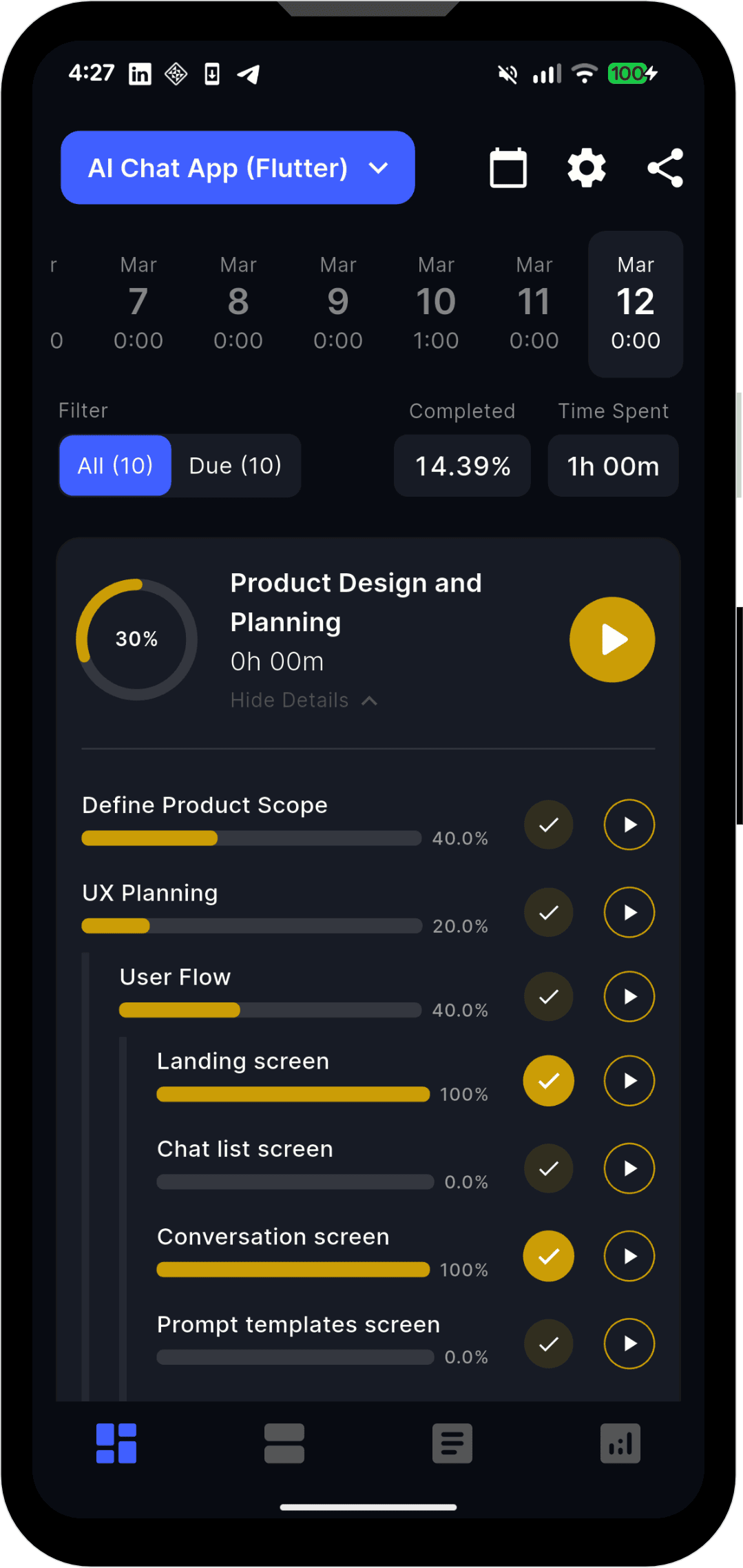
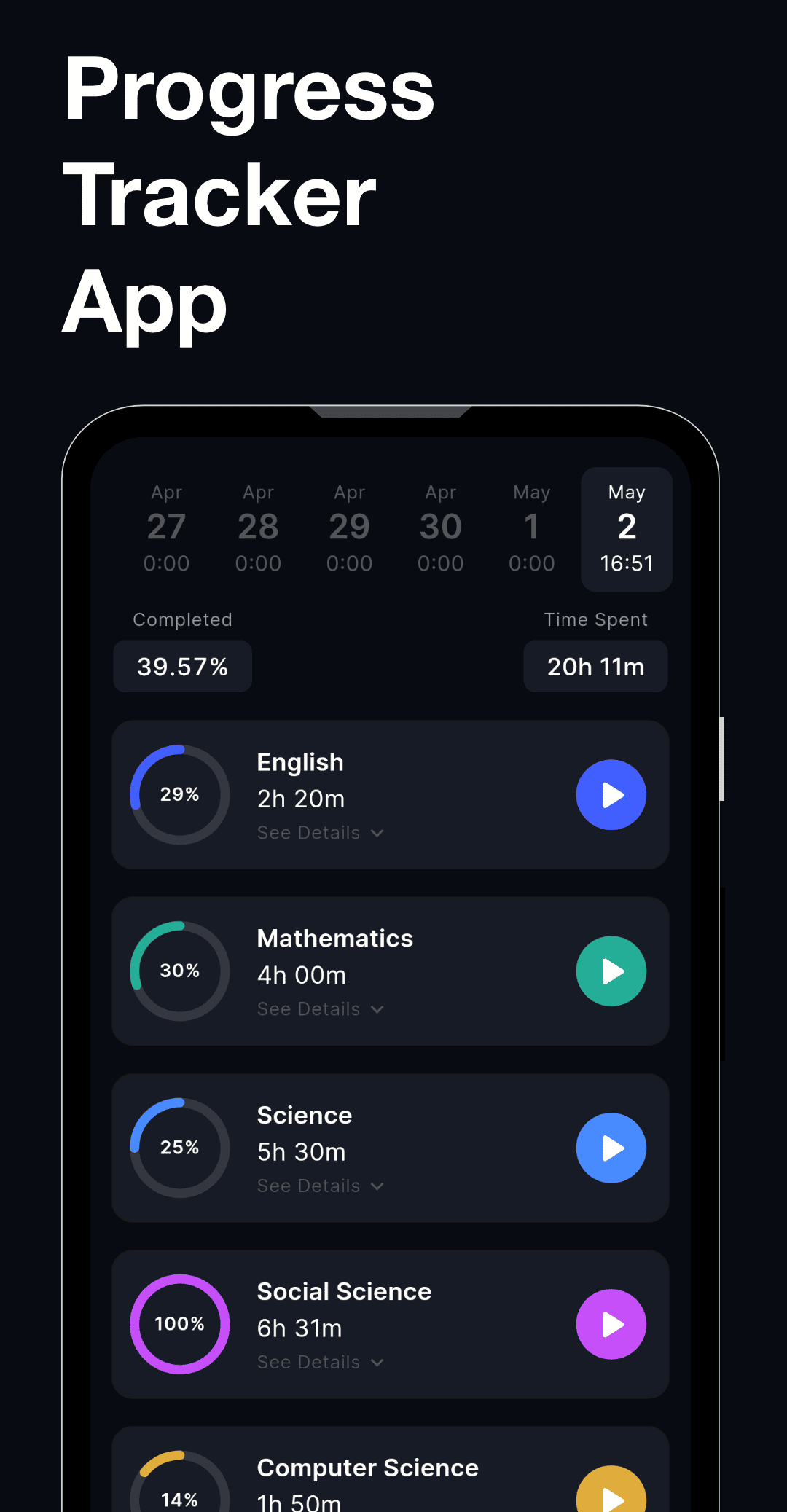
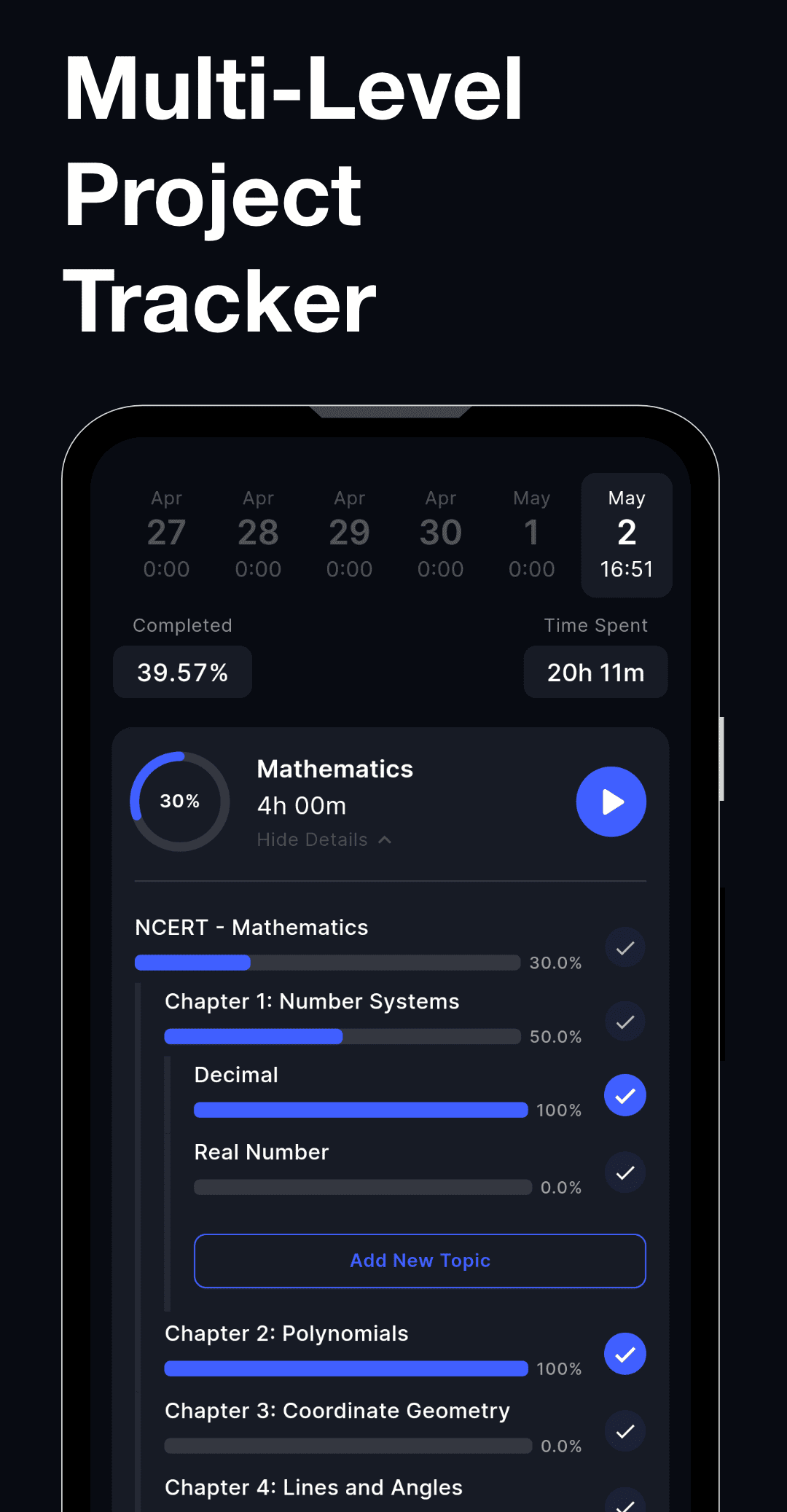
A browser timer is perfect for a single session. If you want a history of every session by subject across weeks of exam prep, that is exactly what the TrackIt app is built for.